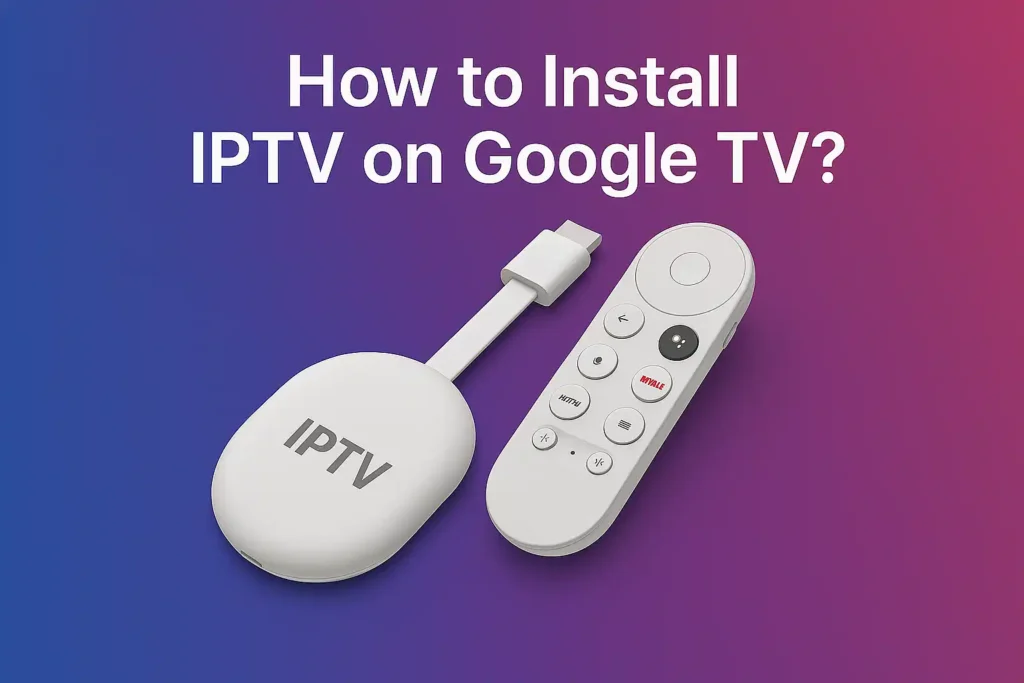
Yeah IPTV For most users, installing a player from Google TV’s app store is the simplest option. If the app is unavailable, sideloading may be possible on a supported device, but it is an advanced option: obtain the APK only from its verified publisher and avoid unknown download links. The permissions and menu labels can differ across Google TV versions. Whether you’re using GSE Smart IPTV or another player, this guide is your starting point to unlock seamless streaming on your Google TV device.
By means of Google IPTV, an IPTV membership lets you conveniently access many channels, films, and shows right in front of your eyes.
Setting up IPTV is a straightforward operation whether you have a built-in Google TV unit or a Chromecast. With just a few steps, follow this simple tutorial to enable your IPTV subscription on Google TV.
How to Add M3U Link or Xtream Codes in GSE Smart IPTV
1. Open the GSE Smart IPTV app on your Google TV and tap “Agree” to accept the terms and conditions.
To add Google IPTV playlist, go to “Remote Playlist”, then select “Add M3U URL” and enter the link provided by your IPTV provider.
If your provider uses Xtream codes, choose the “Xtream Codes API” option and input the necessary details.
For the TV guide, click on “EPG Program Guide” and follow the on-screen prompts to set it up.
That’s it — you’re all set to start watching your favourite!
How to Sideload IPTV on Google TV
If your chosen IPTV player isn’t available on the Google TV app store, you can still install it by sideloading the APK manually. Here’s how:
1. Enable Developer Mode
- Click your profile icon, then go to Settings > System > About.
- Scroll to “Android TV OS Build” and tap it multiple times until you see a message confirming developer mode is enabled.
2. Install a Downloader App
- Use the Search feature from the menu bar.
- Search for “Downloader” and install it.
3. Allow Installation from Unknown Sources
- Go to Settings > Apps > Security & Restrictions.
- Select “Unknown Sources” and enable it for the Downloader app.
4. Sideload the IPTV APK
Once downloaded, click “Install” to complete the setup.
Open the Downloader app.
In the URL field, enter the APK link for GSE Smart IPTV (or your preferred player).
Press “Go” to download the file.
IBO Player is considered one of the preferred IPTV players for Google TV thanks to its smooth performance, modern interface, and broad compatibility with IPTV services. The application is designed to provide an easy setup process while offering advanced features that improve the overall streaming experience.
Available in different versions, IBO Player allows users to manage playlists, organize channels, access video-on-demand content, and enjoy a responsive navigation system optimized for large-screen devices. Its clean design and reliable playback capabilities make it a popular choice among IPTV users looking for a stable and user-friendly media player.
One of the biggest advantages of Google TV is its compatibility with a wide range of IPTV applications. Choosing the right IPTV player can significantly improve the streaming experience by providing better navigation, advanced playback features, and easier content management.
Some of the most popular IPTV apps for Google TV include IPTV Smarters Pro, Tivimate IPTV Player, XCIPTV, Sparkle TV, and OTT Navigator. These applications allow users to organize live TV channels, video-on-demand content, catch-up services, and electronic program guides from a single interface.
Tivimate IPTV Player is often preferred by advanced users because of its modern design and powerful customization options. IPTV Smarters Pro remains one of the most widely used IPTV applications due to its simple setup process and compatibility with multiple devices. XCIPTV and Sparkle TV also provide excellent performance and user-friendly interfaces for viewers looking for alternative IPTV players.
When selecting an IPTV app for Google TV, users should consider factors such as ease of use, playlist support, playback quality, electronic program guide functionality, and overall streaming performance.
One of the main advantages of IBO Player is its compatibility with Google TV, Android TV, Smart TVs, and other supported streaming devices. Users can quickly configure their IPTV subscription and begin watching live television, sports events, movies, and series without complex installation procedures.
For viewers seeking a powerful IPTV application with excellent performance and flexible playlist management, IBO Player remains one of the most recommended IPTV players available for Google TV and modern streaming platforms.
After installing your preferred IPTV application on Google TV, the next step is choosing a reliable IPTV service. Yeah IPTV access to a large collection of live TV channels, sports events, movies, TV series, and international entertainment content that can be enjoyed directly on Google TV devices.
Yeah IPTV is compatible with popular IPTV applications such as IPTV Smarters Pro, Tivimate IPTV Player, XCIPTV, and many other supported IPTV players. This flexibility allows users to configure their preferred application and enjoy a seamless streaming experience across multiple devices.
Whether you are interested in live sports, premium movie channels, international programming, or on-demand entertainment, Yeah IPTV offers a simple solution for accessing content through Google TV. With flexible subscription options, multi-device compatibility, and a user-friendly setup process, users can start streaming their favorite content within minutes.
For new users, a free trial option may be available, allowing viewers to test the service and evaluate streaming quality before choosing a subscription plan.
Every Yeah IPTV subscription is compatible with popular IPTV applications, including IBO Player, one of the most trusted IPTV players available today. Known for its user-friendly interface, smooth navigation, and reliable playback performance, IBO Player helps users enjoy live TV channels, movies, sports events, and on-demand content with ease.
Whether you are using Google TV, Android TV, Smart TV, or other compatible devices, IBO Player provides a simple way to access and organize IPTV content. Thanks to its advanced playlist management features and optimized streaming performance, many users choose IBO Player as their preferred IPTV application.
By combining a Yeah IPTV subscription with IBO Player, viewers can enjoy a premium entertainment experience with fast channel loading, high-quality streaming, and convenient access to their favorite content across multiple devices vistite our Yeah IPTV setup guide.