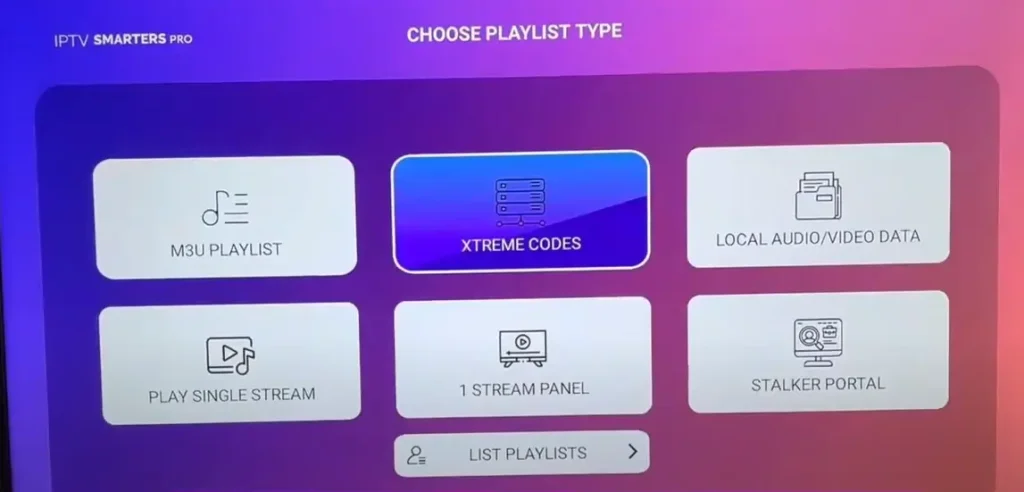
Quick guide: Set up IPTV in five steps: choose a compatible device, install a player from its official store if available, obtain provider-authorized credentials, add the M3U or Xtream Codes details and test playback. An Ethernet connection can help if Wi-Fi is unstable. See our device-specific guides for more instructions.
Before you can set up IPTV, choose a reliable IPTV provider like Yeah IPTV plans that offers the channels and content you want. Make sure they provide:
High-quality streams (HD or 4K).
Stable connection.
Legal content licensing.
Customer support.
2. Get the Right Devices
Make sure you have a compatible device. You can use IPTV on various devices like:
Smart TV.
Android Box.
Firestick.
PC, Tablet, or Smartphone.
3. Install IPTV App
1. For Firestick/Android TV:
Allow apps from outside the Amazon Store
On the Home screen, open Settings.
Choose My Fire TV → Developer Options.
Set Apps from Unknown Sources to On. Switch ADB Debugging to On only if an app later asks for it.
2. Install the Downloader utility
Return to the Home screen and select Search.
Type Downloader and pick it from the list.
Press Download (or Get) and wait until installation finishes. Open Downloader and approve any storage-access prompt.
How to Install TiviMate on Firestick and Android TV To organize a provider-issued IPTV playlist on a compatible Firestick or Android TV device,TiviMate IPTV Player is a media player built
How to Install IPTV on Firestick: Step-by-Step Guide Yeah IPTV – To set up IPTV on a compatible Fire TV device, first check the Amazon Appstore for a player that
How to Install IPTV on Google TV: Step-by-Step Guide Google TV supports compatible IPTV player apps that can display playlists and streams you are authorized to access. Start by searching
Yeah TV is trusted by thousands of IPTV fans globally. Don’t settle for cheap IPTV services that freeze and buffer — get a reliable provider with top performance and unbeatable value.We are here to help you 7 days a week and respond within 24 hours. Plus, you can find most answers to your questions right on this page.
What Are the Legal Considerations with IPTV?
Ensure you access IPTV content legally to avoid penalties. Check your provider’s compliance with local regulations, as they may vary.
How is IPTV Different from Cable?
IPTV uses internet protocols for streaming, offering on-demand content and flexible viewing compared to traditional cable services.
Are There Subscription Fees for IPTV?
Yes, IPTV services usually require a subscription. Compare pricing and check for hidden fees to find the best option for your needs.
Can I Use IPTV While Traveling?
Yes, you can, but check if your service supports international access. Use a VPN if you face restrictions.
How Can I Improve IPTV Streaming Quality?
Ensure your internet speed is sufficient, use wired connections for stability, and optimize your devices by closing unused apps and updating firmware.