

How to Install IPTV on Firestick ?
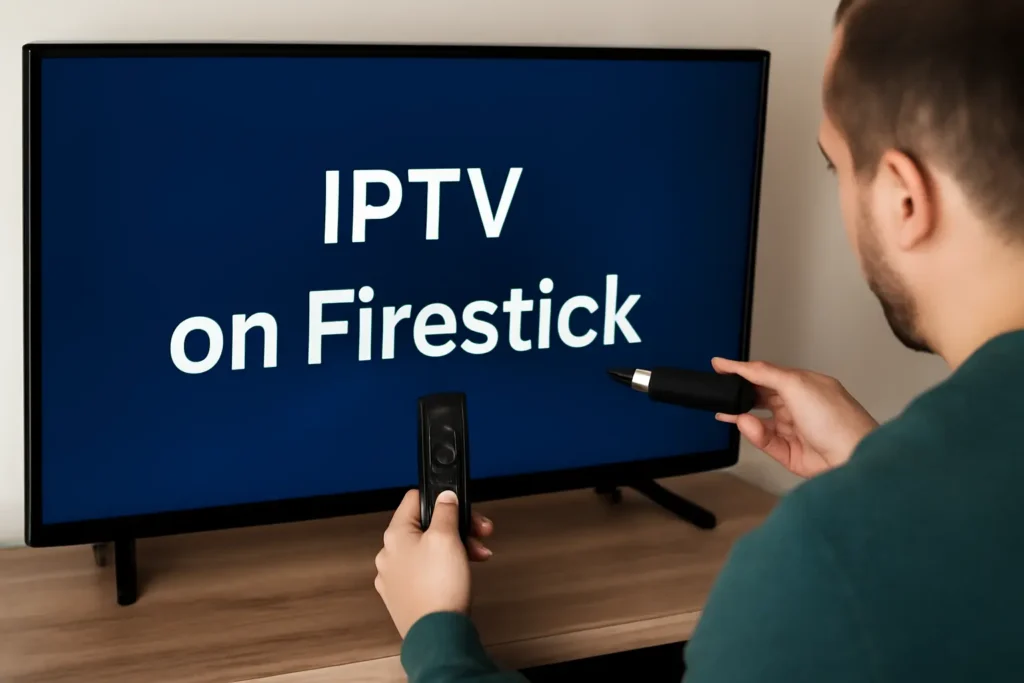
How to Install IPTV on Firestick: Step-by-Step Guide Yeah IPTV – To set up IPTV on a compatible Fire TV device, first check the Amazon Appstore for a player that supports your provider-issued playlist. If your particular model allows installation from outside the store, use only an app obtained from its verified publisher, and grant installation permission only to the installer you use. Open the player, then add the M3U playlist URL or Xtream Codes details from your authorized provider. Sideloading availability and menu names vary by Fire TV model and Fire OS version. To install IPTV on Firestick, start by choosing a reliable provider like Yeah IPTV, known for its wide channel selection, HD streaming, and excellent device compatibility. Then, under “Settings” on Firestick, go to “My Fire TV,” enable Developer Options, and allow third-party app installations. Use the Downloader app to sideload your chosen IPTV app by entering its URL. Once installed, open the app and adjust settings for the best streaming experience. For more streamlined steps and optimization tips, keep exploring beyond this guide. 1. Prepare your Firestick If the IPTV player is not in the Amazon Appstore and your Fire TV model supports sideloading, you may need to allow installation through a trusted downloader app: 1. Go to the Home screen, then select the Settings (gear icon). 2. Click “My Fire TV” or “Device & Software” (depending on your model). 3. Open Developer Options if available. On some Fire TV versions it is hidden under Settings > My Fire TV > About until enabled. Some newer models do not support sideloading. 4. If supported, open Install Unknown Apps and allow your trusted downloader to install the verified app. Older Fire OS versions may label this Apps from Unknown Sources. 5. Leave ADB Debugging disabled for a normal Downloader installation. It is only needed for separate developer-tool workflows. 2. Install the Downloader app This tool allows you to download APK files directly on your Firestick. 1. From the Firestick home screen, go to the Search bar. 2. Type Downloader and select it in the results. 3. Click Download and wait for installation. 4. Open Downloader once installed. 5. Grant any permission requested (for file access). 3. Download and install the IPTV app 1. In Downloader, enter the following URL:➤ https://www.iptvsmarters.com/smarters.apk 2. Click Go – the APK file will start downloading. 3. Once the download is complete, click Install. 4. After installation, click Open to launch the app. 5. You can now delete the APK file to save space if you wish. You can replace IPTV Smarters with any other IPTV app like TiviMate, Flix IPTV, etc., by entering their official APK link. For a step-by-step walkthrough of the TV player, read our TiviMate IPTV Player setup guide. 4. Add your IPTV subscription Now you need to log in with your IPTV account: 1. Open the IPTV app you just installed, In this example, we have IPTV Smarters. 2. Choose your login method: M3U Playlist URL Xtream Codes API (most common) Username + Password (if provided) 3. Enter the details provided by your IPTV provider: Server URL or portal Username Password 4. Click Login or Add User 6. Wait for the channels and EPG to load 5. Start watching IPTV Once setup is complete, you can: Browse live TV channels. Access video-on-demand (VOD). Use catch-up or replay (if supported). Customize your settings (favorites, parental control, etc.) Yeah IPTV – Frequently Asked Questions Yeah IPTV TV – is trusted by thousands of IPTV fans globally. Don’t settle for cheap IPTV services that freeze and buffer — get a reliable provider with top performance and unbeatable value.We are here to help you 7 days a week and respond within 24 hours. Plus, you can find most answers to your questions right on this page. How do I know if my IPTV subscription is legal? Check if the provider has proper licenses and follows local IPTV laws. Avoid unverified services. Which VPNs work best for IPTV on Firestick? NordVPN, ExpressVPN, and Surfshark are reliable, secure, and work well on Firestick. Can I use IPTV on multiple devices? Yes, if your provider allows it. Check their policy on multi-device access. How often should I update my IPTV app? Every few months, or when updates are available, to keep the app running smoothly. Are there parental controls for IPTV on Firestick? Yes. Most apps let you set a PIN and block specific content from the settings menu.