
Yeah IPTV - How to Set Up IPTV on a MAG Box ?

Choosing the right device is an important part of building a reliable IPTV setup. Several MAG Box models are available, each offering different levels of performance and hardware capabilities.

Popular devices such as MAG 524 and MAG 540 are known for their fast processors, smooth navigation, and support for high-quality streaming. These models are designed to handle large channel lists, video-on-demand libraries, and electronic program guides without compromising performance.

For users seeking a dedicated IPTV solution, investing in a modern MAG Box can significantly improve the overall streaming experience compared to older hardware.

Choosing the right device is an important part of building a reliable IPTV setup. Several MAG Box models are available, each offering different levels of performance and hardware capabilities.

Popular devices such as MAG 524 and MAG 540 are known for their fast processors, smooth navigation, and support for high-quality streaming. These models are designed to handle large channel lists, video-on-demand libraries, and electronic program guides without compromising performance.

For users seeking a dedicated IPTV solution, investing in a modern MAG Box can significantly improve the overall streaming experience compared to older hardware.

Yeah IPTV TV Setting up IPTV on a MAG Box is a straightforward process that lets you access live TV, movies, and more through your internet connection. This modern visual highlights the key device involved in the setup—a MAG Box—and introduces the topic with a clean, focused design. Whether you’re new to IPTV or simply switching devices, this is the first step toward effortless streaming.

IPTV on a MAG Box

If you want a seamless path to enjoy your IPTV subscription on a MAG Box, setting up an IPTV on a MAG Box gives you access to many channels, films, and on-demand content very easily.

This manual will take you through every step to guarantee a perfect installation whether you’re a first-time or seasoned user. Follow to have your IPTV subscription started on your MAG equipment quickly!

MAG Box Setup

Step 1 : When you power on your MAG Box, the main portal screen will be displayed. Use the remote to navigate to Settings, then press the “SETUP” or “SET” button to open the settings menu.

IPTV on a MAG Box

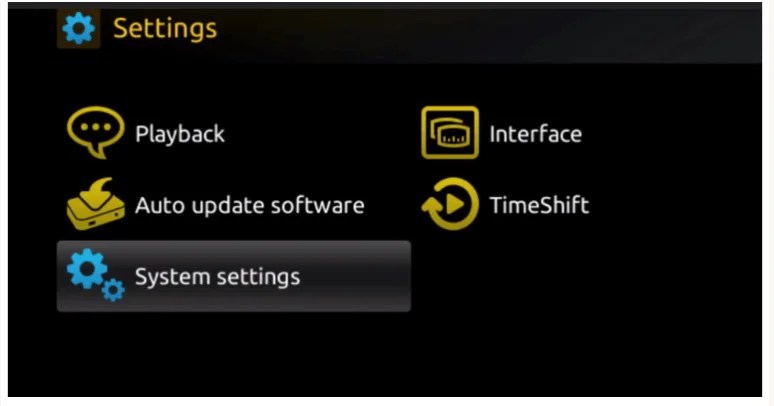
Step 2 : Within the settings menu, select “System Settings”, then go to “Servers” to access the server configuration options.

IPTV on a MAG Box

Step 3 : Next, select the “Portals” option to begin configuring the IPTV portal for your service.

IPTV on a MAG Box

Step 4 : In the ‘Portal 1 Name’ field, type a name of your choice for the portal. In the ‘Portal 1 URL’ field, enter the link provided to you when you subscribed to the IPTV service. To activate your subscription, make sure to send us the MAC address found on the label at the back of your MAG Box.

IPTV on a MAG Box

Step 5 : Once remote activation is complete, you’ll receive a URL link. Enter this link into the Portal URL field, following the example shown in the provided screenshot.

Step 6: After entering all the necessary information, select ‘OK’ to save your changes.

Step 7: Once the settings are saved, press ‘EXIT’ on your remote to return to the main screen.

Step 8: To apply the changes, restart your MAG Box. When prompted, click ‘OK’ to confirm and complete the setup.

After rebooting, you will be ready to stream IPTV content. Enjoy smooth access to live TV, movies, sports, and much more!

M3U to Xtream Codes Converter: Complete IPTV Guide

Yeah IPTV – M3U to Xtream Codes Converter: Complete IPTV Guide Yeah IPTV works with most internet providers without requiring manual IPTV VLAN configuration. However, some ISPs may require VLAN settings depending on their network setup. If your provider uses IPTV VLAN, simply follow your router’s configuration guide before activating your Yeah IPTV subscription. If you are new to IPTV services, you may have heard terms like IPTV and VLAN while setting up your internet or streaming devices. In this guide, we explain what IPTV and VLAN mean and how they work with the Yeah IPTV service. The IPTV industry continues to grow rapidly, offering thousands of live TV channels, movies, and series through internet streaming. Two of the most popular formats used by IPTV providers are M3U playlists and Xtream Codes API. While M3U is simple and widely used, Xtream Codes has become the preferred method for many IPTV users because it offers faster loading, better compatibility, and more stability. That’s why many people search for a reliable M3U to Xtream Codes converter. In this guide, we’ll explain what M3U and Xtream Codes are, why conversion is important, and how to easily convert your M3U IPTV link into Xtream Codes format. What is an M3U Playlist? An M3U playlist is a simple text file containing IPTV channel links. It usually includes: Live TV channels Video on Demand (VOD) TV Series Example of an M3U URL: http://example.com/get.php?username=USER&password=PASS&type=m3u_plus&output=ts This format works with most IPTV players such as: VLC Media Player IPTV Smarters TiviMate Perfect Player Kodi M3U is easy to share, but sometimes it loads slowly, especially if the playlist is very large. What is Xtream Codes API? Xtream Codes API is a more advanced IPTV login method. Instead of using one long M3U link, Xtream Codes requires three simple details: Server/Portal URL Username Password Example of Xtream Codes format: Portal URL: http://example.com:8080 Username: USER Password: PASS This method is supported by most IPTV apps like IPTV Smarters Pro, TiviMate, XCIPTV, and many more. M3U vs Xtream Codes – What’s the Difference? Feature M3U Playlist Xtream Codes API Setup method Long URL Portal + User + Pass Speed Slower on big lists Faster loading Compatibility Works with most apps Works better with advanced apps EPG support Limited More accurate Stability Can buffer more More stable  Clearly, Xtream Codes API is superior for daily IPTV usage. Why Convert M3U to Xtream Codes? There are several reasons why IPTV users prefer to convert M3U to Xtream Codes format: Faster Channel Loading – Xtream API loads channels more quickly than large M3U files. Easier Login – Instead of pasting a long URL, you only need server, username, and password. Better EPG (TV Guide) – Xtream Codes usually gives more accurate and complete guides. Stability – Less chance of buffering compared to raw M3U links. Compatibility – Many IPTV apps now recommend Xtream Codes login. Step-by-Step Guide: Convert M3U to Xtream Codes If you already have an M3U link, you can easily extract Xtream Codes login details from it. Step 1: Copy Your M3U URL Example: http://example.com:8080/get.php?username=USER&password=PASS&type=m3u_plus&output=ts Step 2: Extract the Server URL Take everything before /get.php. Result: http://example.com:8080 Step 3: Extract Username and Password Look inside the URL: username=USER → Xtream Username password=PASS → Xtream Password Step 4: Use Xtream Codes Format Now you can log in to any IPTV player with: Portal URL: http://example.com:8080 Username: USER Password: PASS  Done! You have successfully converted your M3U into Xtream Codes. Best Tools to Convert M3U to Xtream Codes While you can do it manually, there are also online converters and apps that extract Xtream Codes automatically from M3U links. Examples include: Online M3U to Xtream converters (always choose trusted ones) IPTV Smarters (sometimes auto-detects Xtream API) TiviMate playlist parser  Important: Be careful when using third-party tools. Always trust your IPTV provider first. Conclusion Converting M3U to Xtream Codes is a simple but powerful way to improve your IPTV experience. Xtream Codes API offers: Faster login Smoother streaming Better EPG integration Higher compatibility with IPTV apps Whether you’re using IPTV Smarters, TiviMate, or XCIPTV, knowing how to extract and convert your IPTV credentials will save time and give you a more stable streaming setup. If you’re an IPTV user, always prefer Xtream Codes login whenever available – it’s the future of IPTV access. SUBSCRIBE NOW

Read More »
What Is IPTV

What Is IPTV / Vlan​ ?

What Is IPTV VLAN? A Complete IPTV Setup Guide Yeah IPTV works with most internet providers without requiring manual IPTV VLAN configuration. However, some ISPs may require VLAN settings depending on their network setup. If your provider uses IPTV VLAN, simply follow your router’s configuration guide before activating your Yeah IPTV subscription. If you are new to IPTV services, you may have heard terms like IPTV and VLAN while setting up your internet or streaming devices. In this guide, we explain what IPTV and VLAN mean and how they work with the Yeah IPTV service. IPTV VLAN is a dedicated virtual network used by some internet providers to deliver IPTV services separately from your regular internet connection. It improves streaming stability, reduces buffering, and ensures better network performance.   Yeah IPTV TV delivers television content through IP networks using protocols like RTP and HTTP Live Streaming, and access typically requires an active IPTV subscription from a provider. At the same time, VLANs create isolated broadcast domains that segment this IPTV traffic from regular data flows, ensuring better performance and security. You’ll configure dedicated VLANs for multicast video streams, set-top box management, and VoD services using 802.1Q tagging. IGMP snooping on your IPTV VLANs prevents multicast flooding, and QoS policies with DSCP markings prioritize video packets. These technologies combine to ensure optimal streaming performance across your network infrastructure. VLAN stands for Virtual Local Area Network. It is a network technology used by some internet providers and routers to separate internet traffic into different categories. Some ISPs use VLAN settings to manage IPTV traffic separately from normal internet traffic. VLAN configurations can improve: IPTV streaming stability Network performance Traffic organization Streaming quality Not all users need VLAN settings for IPTV services. Understanding IPTV Technology and How It Works IPTV (Internet Protocol Television) delivers live TV channels, movies, sports, and on-demand content through an internet connection instead of traditional cable or satellite networks. Unlike conventional television, IPTV uses advanced streaming technologies to provide faster channel loading, HD & 4K quality, and a more flexible viewing experience across multiple devices. With Yeah IPTV, you can stream thousands of live TV channels and premium entertainment on Smart TVs, Android devices, Firestick, Windows PCs, iPhones, and tablets. Thanks to stable servers and optimized streaming technology, users enjoy smooth playback with minimal buffering. Benefits of IPTV Technology Stream live TV over the internet Watch HD, Full HD, and 4K content Access movies, TV series, and sports instantly Compatible with Smart TVs, Firestick, Android, and iOS Faster and more reliable than traditional TV services VLAN Fundamentals and Network Segmentation Basics VLAN is a way to segment your physical network into separate broadcast domains, allowing you to control traffic flow and improve security without needing extra hardware. Different types can be configured, such as port-based, protocol-based, and MAC-based VLANs, to create effective network isolation. In practice, VLANs are managed by assigning VLAN IDs (1–4094) and setting up trunk ports with 802.1Q tagging. Security is strengthened through inter-VLAN routing restrictions and access control lists (ACLs). IPTV works by transmitting television content through internet protocols instead of standard cable systems. To use Yeah IPTV, users only need: A stable internet connection An IPTV subscription An IPTV player or compatible device Once configured, users can instantly access live TV, sports, movies, and premium streaming content. IPTV VLAN Explained An IPTV VLAN (Virtual Local Area Network) is a dedicated network created by some internet providers to separate IPTV traffic from regular internet traffic. This improves network efficiency, reduces buffering, and helps deliver a more stable streaming experience, especially for HD and 4K IPTV services. Not every internet provider requires IPTV VLAN settings. If your ISP uses VLAN technology, you may only need to enter the correct VLAN ID in your router before activating your IPTV service. IPTV VLAN Advantages : Better streaming stability Reduced buffering Improved network performance Optimized IPTV traffic Reliable HD & 4K streaming Key Benefits and Applications of IPTV Systems Aspect Details Network Foundation IPTV builds on VLAN segmentation to deliver multimedia over IP. Streaming Quality Uses multicast protocols, reducing bandwidth use by 60–80%. Packet Delivery Enables simultaneous transmission to multiple endpoints without duplication. Quality of Service (QoS) Prioritizes video traffic to maintain stable 1080p/4K streaming. Applications – Hospitality deployments- Campus networks- ISP triple-play services Management Centralized monitoring and real-time performance tracking. Scalability Supports thousands of concurrent users with efficient distribution. How IPTV VLAN Works When IPTV traffic is separated from normal internet traffic, video packets receive higher priority across the network. Technologies such as 802.1Q VLAN tagging, IGMP Snooping, and QoS (Quality of Service) help ensure that live TV streams remain smooth, even when multiple devices are connected to the same network. This dedicated traffic management is especially useful for households that regularly stream live sports, movies, and TV channels in high definition. How VLANs Enable Efficient IPTV Deployment Through strategic VLAN segmentation, you’ll isolate IPTV traffic from general data flows, implementing IEEE 802.1Q tagging that creates dedicated broadcast domains for multicast streams.  You’re establishing QoS policies at Layer 2, prioritizing video packets while preventing network congestion. Configure separate VLANs for STB management, EPG data, and video delivery—each optimized for specific bandwidth requirements. VLAN scalability ensures you’ll accommodate growing subscriber bases without redesigning network architecture.  By deploying IGMP snooping within VLANs, you’re eliminating unnecessary multicast flooding, directly enhancing IPTV performance. Configure trunk ports with proper VLAN pruning, reducing broadcast storms across distribution switches. Setting up and Configuring IPTV With VLAN Support When you’re implementing IPTV with VLAN support, you’ll start by configuring your core switch with dedicated VLAN IDs—typically VLAN 10 for multicast video streams, VLAN 20 for STB management, and VLAN 30 for VoD services. You’ll enable IGMP snooping on VLAN 10 to optimize multicast traffic.  Configure trunk ports between switches using 802.1Q tagging, ensuring proper VLAN configuration across your network infrastructure. Set QoS policies prioritizing video traffic with DSCP markings. During IPTV setup, you’ll assign access ports to appropriate VLANs based on device types. Test multicast forwarding and verify IGMP join/leave messages process correctly before deployment. Conclusion Understanding IPTV VLAN can help

Read More »
How to Turn on Subtitles on IPTV

How to Turn on Subtitles on IPTV ?

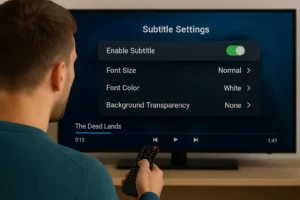
Yeah IPTV – How to Turn on Subtitles on IPTV ? Yeah IPTV TV  – How to Turn on Subtitles on IPTV ? – To turn on subtitles on IPTV, you’ll start by opening your stream and locating the settings icon – usually a gear or three dots. Next, tap the subtitles menu within playback options and select “Subtitles” or “CC” from the interface.  Choose your preferred language from the available list, then adjust font size and color if needed. Most apps linked to your IPTV subscription make this process straightforward, though specific steps may vary depending on the device and platform you’re using. How to Enable Subtitles on IPTV Smarters Open the IPTV Smarters app on your device (Set-Top Box, Smart TV, Android, or iOS). Go to the Settings menu from the main screen. Look for the option “Subtitle Settings.” Choose “Enable Subtitle” (or “Disable Subtitle” if you want them off). Customize subtitle appearance by adjusting: Font size Font color Background transparency Save your settings and return to playback. Configuring Subtitle Settings on Different Devices Your device type determines exactly which steps you’ll follow to configure subtitle settings for IPTV. Check your device compatibility first, as older models might’ve limited options. You’ll access subtitle preferences differently across platforms: Smart TVs: Press the settings button, navigate to accessibility or display options. Streaming boxes: Open system settings, select captions or subtitles menu. Mobile devices: Tap the screen during playback, select the CC icon. Web browsers: Right-click the video player, choose subtitle options. Once you’ve located these settings, you can customize font size, color, background opacity, and language preferences for optimal viewing. Yeah IPTV – Frequently Asked Questions Yeah IPTV is trusted by thousands of IPTV fans globally. Don’t settle for cheap IPTV services that freeze and buffer — get a reliable provider with top performance and unbeatable value.We are here to help you 7 days a week and respond within 24 hours. Plus, you can find most answers to your questions right on this page. Are IPTV Subtitles Available for Live Broadcasts and Sports Events? Yes, you’ll find subtitles for many live events, though availability varies by provider. Sports commentary subtitles aren’t always guaranteed. Check your IPTV service’s live broadcast settings menu and look for the CC or subtitle icon during streaming. Do IPTV Subtitles Consume Additional Internet Bandwidth or Data? You’re probably wondering about bandwidth concerns while streaming. IPTV subtitles don’t significantly increase data usage since they’re text-based files. Most subtitle formats like SRT only add 1-2KB per minute to your stream’s bandwidth consumption. Can I Add My Own Subtitle Files to IPTV Content? You can’t directly add external subtitle files to most IPTV streams. However, some advanced players support subtitle formats like SRT. Check your app’s file compatibility settings or use VLC player for local content with custom subtitles. Are IPTV Subtitles Synchronized Differently Than Traditional Cable TV Captions? Don’t put the cart before the horse—yes, you’ll notice differences. IPTV’s subtitle accuracy depends on streaming protocols, causing synchronization issues more frequently than cable. You’ll need to manually adjust timing settings when delays occur. Is There a Legal Requirement for IPTV Providers to Offer Subtitles? Yes, you’ll find legal implications require IPTV providers to ensure subtitle accessibility in many countries. Check your region’s broadcasting regulations, as they typically mandate closed captions for streaming services to accommodate hearing-impaired viewers’ needs.

Read More »
How Do You Get IPTV ?

How Do You Get IPTV ?

Yeah IPTV – How Do You Get IPTV ? Yeah IPTV TV – To get IPTV you’ll need three core components : a compatible streaming device (smart TV, set-top box, or streaming stick with 2GB+ RAM), a reliable IPTV provider with your desired channel packages, and stable broadband maintaining 10 Mbps for HD or 25 Mbps for 4K content.  After selecting a reliable IPTV provider like IPTV USA, you’ll configure their server URL and credentials in your device’s application. The complete setup process involves additional network optimization steps that ensure buffer-free streaming performance. Understanding Different Types of IPTV Services When you look into IPTV, you’ll come across three main types of services, each with its own delivery method: Live TV streaming – channels are broadcast in real-time, just like traditional television, but delivered over the internet. Time-shifted TV – also called catch-up TV, this lets you watch shows you missed after they were originally aired. Video on Demand (VOD) – gives you access to a library of movies, series, and other content that you can watch anytime. In addition, those services can be offered in two ways: Managed IPTV – provided by telecom companies through private networks, ensuring stable quality. Over-the-Top (OTT) IPTV – delivered over the public internet, often more flexible but dependent on your connection quality. Subscription models vary too, ranging from monthly plans to pay-per-view options. Understanding these differences will help you pick the IPTV service that best fits your needs and viewing habits. Choosing the Right IPTV Device and Equipment Hardware Factor What to Look For Processing Power Strong CPU/GPU to handle high-quality streaming without lag. Codec Support Must support H.265/HEVC decoding for efficient video compression. Resolution Support for 4K Ultra HD playback. Network Connectivity Prefer Gigabit Ethernet for stability; Wi-Fi 6 for strong wireless performance. Device Options – Dedicated IPTV set-top boxes- Smart TVs with built-in apps- Android TV boxes or Amazon Fire Stick RAM Minimum 2 GB for smooth app performance and multitasking. Storage Enough capacity for buffering and app installation. Middleware & DRM Ensure compatibility with your IPTV provider’s required protocols. Finding and Selecting an IPTV Provider After establishing your hardware requirements, you’ll need to evaluate IPTV providers based on service reliability, content libraries, and technical specifications. Research provider reputation through industry forums and aggregated service reviews on platforms like Trustpilot. You’ll want to compare channel packages, VOD offerings, and supported resolutions against pricing tiers. Check server uptime statistics, CDN infrastructure, and customer support availability. Verify compatibility with your chosen hardware and confirm supported protocols like HLS or MPEG-DASH. Request trial periods to test stream stability and latency. Consider providers offering EPG integration, catch-up TV, and multi-device licensing for comprehensive household coverage Setting Up Your IPTV Service Step by Step Three primary configuration phases define the IPTV setup process: initial provider authentication, device-specific installation, and network optimization. You’ll receive credentials upon subscription completion. This IPTV installation guide covers essential steps: Input provider’s server URL into your chosen application. Enter username and password credentials precisely. Configure EPG source for program guide functionality. Adjust buffer settings based on connection speed. Enable hardware acceleration for optimal performance. Following these IPTV configuration tips ensures stable streaming. You’ll need compatible software like VLC, Kodi, or dedicated IPTV apps. Network requirements include minimum 25 Mbps for 4K content, stable latency under 50ms. Yeah IPTV – Frequently Asked Questions Yeah IPTV is trusted by thousands of IPTV fans globally. Don’t settle for cheap IPTV services that freeze and buffer — get a reliable provider with top performance and unbeatable value.We are here to help you 7 days a week and respond within 24 hours. Plus, you can find most answers to your questions right on this page. How Much Internet Speed Do I Need for IPTV Streaming? You’ll need 5-8 Mbps for HD streaming quality and 25 Mbps for 4K content. These bandwidth requirements ensure buffer-free playback, though multiple simultaneous streams demand proportionally higher speeds. Consider 20% overhead for optimal performance stability. Can I Use IPTV on Multiple Devices Simultaneously? You’ll need multi-device subscription plans for simultaneous streaming. Device compatibility varies across platforms—most providers support 2-5 concurrent connections. Streaming options include dedicated apps, web browsers, and set-top boxes, depending on your service tier’s technical specifications. What’s the Difference Between IPTV and Regular Cable TV? You’ll find IPTV advantages include on-demand content, device flexibility, and internet-based delivery, while cable limitations involve fixed hardware, scheduled programming, and coaxial infrastructure. IPTV’s packet-switched technology offers superior scalability compared to cable’s broadcast model. How Much Does IPTV Typically Cost per Month? Unlike traditional cable’s fixed pricing, you’ll find IPTV subscription models range from $10-80 monthly. Pricing variations depend on channel count, streaming quality, and provider infrastructure. Premium services with 4K content and extensive libraries command higher rates.

Read More »
How Do I Setup IPTV

How Do I Setup IPTV ?

Yeah IPTV – How Do I Setup IPTV ? Yeah IPTV TV – To set up IPTV, first select a reliable provider with diverse channels and robust support. Ensure your device like a smart TV or streaming box is compatible. Download the IPTV app from the app store and log in with your provider’s credentials.  Check your network speed, ensuring it’s at least 10 Mbps. For stability, use a wired Ethernet connection and prioritize IPTV traffic in router settings. Restart devices if issues arise. Unlock more insights and guidance by exploring further. 1. Choose an IPTV Provider Before you can set up IPTV, choose a reliable IPTV provider like IPTV USA that offers the channels and content you want. Make sure they provide: High-quality streams (HD or 4K). Stable connection. Legal content licensing. Customer support. 2. Get the Right Devices Make sure you have a compatible device. You can use IPTV on various devices like: Smart TV. Android Box. Firestick. PC, Tablet, or Smartphone. 3. Install IPTV App 1. For Firestick/Android TV: Allow apps from outside the Amazon Store On the Home screen, open Settings. Choose My Fire TV → Developer Options. Set Apps from Unknown Sources to On.Switch ADB Debugging to On only if an app later asks for it. 2. Install the Downloader utility Return to the Home screen and select Search. Type Downloader and pick it from the list. Press Download (or Get) and wait until installation finishes. Open Downloader and approve any storage-access prompt. 3. Download & install your IPTV app (example: IPTV Smarters) In Downloader, highlight the URL field and enter: https://www.iptvsmarters.com/smarters.apk Click Go. The APK will download automatically. When prompted, choose Install. After installation, select Open (or Done) and follow the on-screen setup. 2. For PC or Smartphone: Download the IPTV player app from the official website like IPTV Smarters Pro. 4. Enter Your IPTV Subscription Details Once the app is installed, launch it and enter the following details provided by your IPTV provider: M3U Playlist URL or Xtream Codes Input the credentials your IPTV service has supplied: Password Server/Portal URL Username 5. Enjoy Your IPTV Service After entering the subscription details, wait for the channels to load. You can now start enjoying live TV, movies, sports, and more. Yeah IPTV – Frequently Asked Questions Yeah TV is trusted by thousands of IPTV fans globally. Don’t settle for cheap IPTV services that freeze and buffer — get a reliable provider with top performance and unbeatable value.We are here to help you 7 days a week and respond within 24 hours. Plus, you can find most answers to your questions right on this page. What Are the Legal Considerations with IPTV? Ensure you access IPTV content legally to avoid penalties. Check your provider’s compliance with local regulations, as they may vary. How is IPTV Different from Cable? IPTV uses internet protocols for streaming, offering on-demand content and flexible viewing compared to traditional cable services. Are There Subscription Fees for IPTV? Yes, IPTV services usually require a subscription. Compare pricing and check for hidden fees to find the best option for your needs. Can I Use IPTV While Traveling? Yes, you can, but check if your service supports international access. Use a VPN if you face restrictions. How Can I Improve IPTV Streaming Quality? Ensure your internet speed is sufficient, use wired connections for stability, and optimize your devices by closing unused apps and updating firmware.

Read More »
How to Use IPTV

How to Use IPTV ?

yeah IPTV – How to Use IPTV ? Yeah IPTV TV – To know how to use IPTV, start by selecting a reliable service provider, considering variety, pricing, and regulation compliance. Set up entails installing an IPTV box or smart TV, connecting it to the internet, configuring settings, and updating all devices.  Explore diverse channel options to tailor your viewing experience. If you face issues, troubleshoot by checking network speed, updating apps, or verifying subscriptions. There’s more to uncover about enhancing your IPTV experience. 1. Choose a Reliable IPTV Provider The first step to using IPTV is selecting a trustworthy provider like IPTV USA. Look for one that offers a wide variety of channels, good picture quality (HD/4K), and excellent customer support. Make sure they have transparent pricing. 2. Install an IPTV App Once you’ve chosen a provider, you’ll need to install an IPTV app to access the service. Popular options include IPTV Smarters, TiviMate, and Perfect Player. You can download these apps from the Google Play Store or App Store for smartphones and tablets, or install them on streaming devices like Firestick or Android TV. 3. Enter Your IPTV Subscription Details After installing the app, open it and enter the login credentials provided by your IPTV provider. This could be an M3U playlist URL, Xtream Codes, or a username and password. These details will connect you to the IPTV server, giving you access to live TV channels, VOD (Video On Demand), and other features. 4. Start Streaming Once you’ve logged in, your channels, VOD content, and EPG (Electronic Program Guide) will load. You can now use IPTV and browse through the available content and start watching your favorite shows, movies, or sports events in high quality. 5. Customize Your IPTV Settings (Optional) To enhance your experience, many IPTV apps offer customization options. You can: Add favorites to easily access your preferred channels. Organize the EPG (guide) for easier navigation. Adjust video quality based on your internet speed (HD/4K). 6. Troubleshoot and Optimize. If you encounter buffering or slow streaming, check your internet connection speed, use a wired connection if possible, or adjust the app settings for better performance. yeah IPTV – Frequently Asked Questions Yeah IPTV is trusted by thousands of IPTV fans globally. Don’t settle for cheap IPTV services that freeze and buffer — get a reliable provider with top performance and unbeatable value.We are here to help you 7 days a week and respond within 24 hours. Plus, you can find most answers to your questions right on this page. Can I Use IPTV on Multiple Devices Simultaneously? Yes, but it depends on your provider’s multi-device policy. Ensure your plan supports simultaneous streaming. What Internet Speed Is Required for IPTV? A minimum of 10 Mbps per device is recommended for smooth streaming. Consider total bandwidth for multiple devices. Are IPTV Services Legal Everywhere? IPTV legality varies by country. Research local regulations to ensure compliance. How Do I Protect My IPTV Account? Use strong passwords, enable two-factor authentication, and monitor account activity to protect your IPTV account. Can I Record IPTV Live Streams? Yes, if your service and device support recording features like DVR.

Read More »

Yeah IPTV - Frequently Asked Questions

Yeah IPTV is trusted by thousands of IPTV fans globally. Don’t settle for cheap IPTV services that freeze and buffer — get a reliable provider with top performance and unbeatable value.We are here to help you 7 days a week and respond within 24 hours. Plus, you can find most answers to your questions right on this page.

On my MAG Box, why isn’t my IPTV subscription working?

Make sure your MAC address is registered with your provider, check the Portal URL, and confirm your internet connection.

May I have several subscriptions running on a MAG Box?

Sure, in the Portal 2 settings you can alternative a second Portal URL, but only one subscription can be live at any one time.